Inline AI is a Chrome extension designed to help users interact with AI directly on any webpage. Your privacy and data security are important, and this policy explains what information is handled and how it is used.
What does it do
Inline AI is a client-side Chrome extension that lets you interact with AI directly on any webpage by selecting text. It helps you understand, summarize, rewrite, and analyze content instantly without leaving the page.
Preview
Features
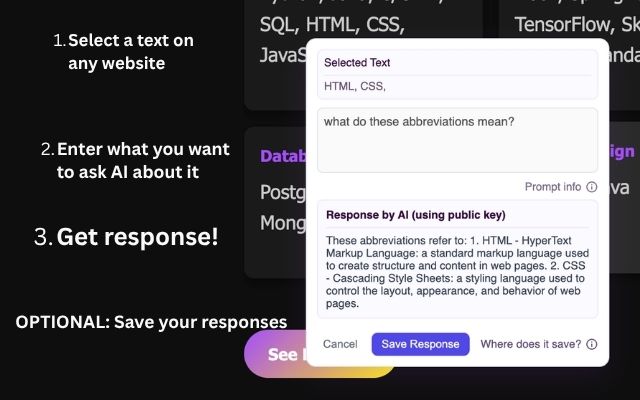
Text Selection: Highlight any text on any webpage to trigger the AI assistant
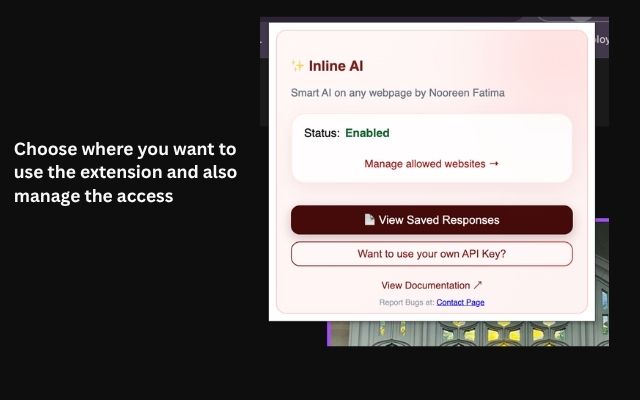
Manage website access: Choose and manage which websites the extension runs on
AI-Powered Responses: Get instant answers from Groq AI about selected content
Smart Annotations: Save important insights and responses for later reference
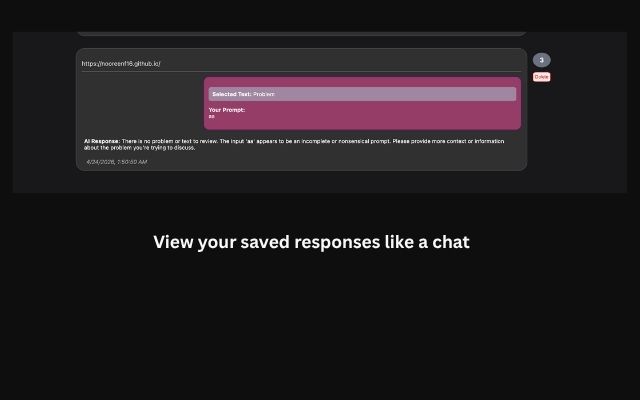
Chat History: View all your saved AI conversations in a ChatGPT-like interface
Secure API Management: Store your Groq API key locally, on your own device with full security (coming soon)
Universal Compatibility: Works on all websites and web applications
Get Started
- Add extension to chrome from Chrome Web Store
- Open extension settings popup and give access to the current website
- Refresh page if necessary
- Select Text and type a prompt
- Send prompt and receive a response
- Save your response if necessary
Prompt Guide
Learn how to get better results from Inline AI when analyzing selected text.
How prompting works
When you highlight text on any webpage, Inline AI sends your selected content along with your prompt to an AI model. The model uses both to generate a response that is context-aware and specific to what you selected.
Think of it like talking to someone who is reading the same paragraph as you—your prompt tells them what to focus on.
Example prompts
- "Explain this in simple terms"
- "Summarize the key points"
- "What is the main argument here?"
- "Rewrite this to be more professional"
- "Break this down step by step"
Pro tips
- Be specific: "Explain this like I’m new to the topic" works better than "explain this"
- Ask for format: bullet points, steps, or summaries improve clarity
- Combine intent + role: "Act like a teacher and explain this"
Privacy note
Only the text you select and your prompt are sent to the AI provider. No browsing history or unrelated page data is shared. Your API key is stored locally in your browser.
Inline AI is not open source and is distributed as a closed extension. Read more at: here
Saved Responses
Access, manage, and revisit all your past AI interactions in one place.
Where to find saved responses
Saved responses are available directly inside the extension. Open the popup from your Chrome toolbar and navigate to your saved history section.
Every response you choose to save is stored locally and can be accessed anytime without needing to revisit the original webpage.
What gets saved
- Original selected text from the webpage
- Your prompt or question
- The AI-generated response
This gives you full context so you can revisit not just the answer, but also what you were asking and why.
Key features
- Complete Context: See original selected text, your prompts, and AI responses together
- Search Functionality: Quickly find past conversations using keywords (coming soon..)
- Organized History: View all saved interactions in chronological order
- Easy Access: Open saved responses with one click from the extension popup
- Delete Management: Remove unwanted entries to keep your history clean
Tips for using saved responses
- Save responses you might want to reference later instead of re-running prompts
- Clean up outdated or irrelevant entries regularly for better organization